
How to Print Our Printables
Printing our printables is a breeze whether you’re using a home printer, classroom printer, phone, tablet or computer. Creative Kids Color printable pages are all in PDF format so that you can download, open and print as needed for a quick activity.
Below are details on how to print Creative Kids Color printables from different devices, plus print settings, US Letter and A4 paper, paper type and fixing any issues when something doesn’t print right.
You will not need to sign up or log in to download our printable PDF files.
Before You Print
Before you print one of our PDF pages, it’s a good idea to know which basic print settings are recommended. Most printing issues happen when the paper size, scale or orientation is off.
For most of our Creative Kids Color PDF files the following print settings are generally appropriate:
- Paper Size: US Letter or A4
- Orientation: Portrait
- Scale: Fit to Page or Fit to Printable Area
- Color: Black and White
- Print Quality: Normal or High
- Double Sided Printing: Off
If you’re printing a few pages for a classroom activity or a group of kids, it’s always a good idea to print one test sheet first to ensure the size, lines and paper orientation are correct.
How to Download a PDF
Navigate to the page on Creative Kids Color with the printable page you’d like to use. Click or tap the image or link to the PDF you’d like to download.
Depending on your browser or device, the PDF may open within your browser or it may download to your device.
Once you’ve opened the PDF you can print it, or if it downloaded, you’ll need to locate it on your device. On a desktop computer this is typically the Downloads folder. On your phone or tablet it may open in Safari or the Files app, or it may be in your Download folder or browser.
If it downloads to your computer, it’s typically easiest to print directly from the browser or download and then print from the PDF file itself. Avoid printing directly from the website if possible for best results since webpages can be tricky to print and cause unexpected results.
How to Print From a Windows Computer
If you’re printing from a computer, you’ll need to open the PDF file in a browser or PDF viewer first. Then press Ctrl + P or click Print in the menu.
Select your printer from the list and make sure the printer is powered on and connected.
Set the paper size to either US Letter or A4. This should match the paper you have loaded in your printer.
Set the orientation to Portrait. Most of our activities are created in portrait orientation.
Set the scale to Fit to Page or something similar. This prevents pages from getting cut off.
Black and White is fine for most printable pages and then click Print.
If the page looks like it’s getting cut off in the preview area, make sure you’re not printing in Actual Size.
How to Print From a Mac
Open the PDF file or link in Safari or Chrome by clicking or tapping it. Then press Command + P or go to File > Print.
Select your printer and if you don’t see all print options, make sure the Show Details option is turned on.
Click the Paper Size option and select whichever size paper you have in your printer. Make sure US Letter or A4 is selected if your printer uses that type of paper.
Set the orientation to Portrait.
Find the Scale to Fit option and set that so that the whole PDF page is visible inside the preview area.
If you want to print a standard printable page in black and white or grayscale, make sure that option is selected if it’s available. Then click Print.
If the page looks too small or gets cut off in the preview area, open the print window again and make sure the paper size, scale or orientation are correct.
How to Print From iPhone or iPad
Open the PDF in Safari, Files or another app that displays PDFs. Tap the share icon, which looks like a square with an upward facing arrow.
Scroll through the options and tap Print. Select an AirPrint compatible printer. Your printer should be connected to the same Wi Fi network as your device.
Make sure the number of copies is set correctly. If there is an option for paper size, make sure the correct setting is selected, such as US Letter or A4.
Tap Print to send the print request to your printer.
If your printer doesn’t show up, make sure your device and printer are connected to the same Wi Fi network, support AirPrint and are powered on. Your printer may also need the printer brand’s specific app.
How to Print From Android
Open the PDF file in Chrome, Downloads, Files, Google Drive or another app. Tap the three dots or share icon and select Print.
Choose your printer from the list. Your device and printer need to be connected to the same Wi Fi network.
Make sure the paper size, number of copies and color settings are set to your preference. For a standard printable page, set the print colors to Black and White. Tap the print button to send your request to the printer.
If your printer doesn’t appear, make sure it’s connected to the same Wi Fi network and your device supports printing. Some Android devices need to have a printer service or brand specific app installed.
If printing from a browser isn’t working, it’s a good idea to download the PDF first and then open the file within the Files or Downloads app.
Print Settings Cheat Sheet
If you’re unsure about which print settings to choose, here are some general recommendations that should work for most Creative Kids Color printable PDF pages.
- Paper Size: US Letter or A4
- Orientation: Portrait
- Colors: Black and White
- Print Quality: High or Best
- Scale: Fit to Page
- Margins: Default or Normal
- Pages: All or the desired pages you want to print
- Double Sided Printing: Off
Printing issues mostly stem from paper size, scale or orientation. If the page looks like it’s too small or is getting cut off, those are the first places to start double checking.
|
Paper size |
Letter (8.5 × 11″) or A4 |
|
Orientation |
Portrait |
|
Color |
Black & White |
|
Quality |
Best / High |
|
Scaling |
Fit to Page |
|
Margins |
Default / Normal |
|
Pages |
All or specific pages |
|
Duplex |
Off |
Best Paper for Our Printables
The type of paper you print on can affect our pages in many ways, from how nicely the pages hold up to how the lines appear. While you can get away with nearly any type of printer paper, it’s a good idea to learn what types of paper tend to work best.
For everyday printing, standard printer paper works well. This is around 20 to 24 lb bond or 75 to 90 gsm. This type of paper is great for home or classroom printing and is reasonably priced. This is a good option for crayons, colored pencils, puzzles, worksheets and most simple activity pages.
If you want something a bit nicer for everyday use, 32 lb premium printer paper or 120 gsm is a good choice. It’s thicker than standard paper, which feels nicer but still works well for most activities.
If you’re printing pages with markers, gel pens, fineliners, or if you want to color on a printable page more heavily, you may want to use something a bit thicker. Heavier paper such as around 160 gsm is going to feel a lot nicer with these types of markers. But it’s important to note that it won’t prevent every type of bleed through, especially with more highly pigmented markers.
If you want to print a page for a classroom display or a keepsake, or if you’re doing a cut and paste type of activity, cardstock is going to be a good choice. Most cardstock falls somewhere between 200 and 270 gsm. However, it’s important to note that most home printers aren’t going to handle the heaviest weights without some problems. Always check your printer’s guidelines on thick paper or test out a single sheet before printing an entire packet.
The type of textured paper can also matter depending on what you’re using. Smooth papers tend to work the best with markers, gel pens and finer tip pens. Textured paper works best with colored pencils and crayons.
When using markers, it’s always a good idea to place a blank sheet of paper underneath the page you’re working on. That will help keep your desk, table or the next sheet of paper clean.
When in doubt, use standard printer paper. If you want something nicer, use 32 lb premium or 120 gsm paper. Save the thicker papers for more specialized work such as markers, displays and cut and paste activities.
|
Copy Paper |
20 to 24 lb / 75 to 90 gsm |
Everyday printing, crayons, colored pencils |
|
Premium Printer Paper |
32 lb / about 120 gsm |
Better everyday printing, colored pencils, crayons, light markers |
|
Marker Friendly Paper |
About 160 gsm |
Markers, gel pens, fineliners, heavier coloring |
|
Cardstock |
200 to 270 gsm |
Displays, keepsake pages, cut and paste activities |
Inkjet vs Laser Printers
When it comes to inkjet vs laser printers, both can work for most of our pages. It’s generally more about what you have available.
Inkjet printers are common for home use. They tend to look nice, but the ink can smear if you color on the page right away. It’s always a good idea to test one sheet first with your markers before printing an entire packet.
Laser printers are common in schools and in offices. They tend to have nice clean black lines and are generally pretty good for most printable pages. Laser printed pages tend to dry much faster, which means there’s less chance of smearing when using markers.
For most printable pages, it’s all about using the right PDF file along with the proper paper size and scaling.
What to Do If the Page Is Cut Off
If part of the printable page is getting cut off, the most common reason is the paper size or scaling.
First, make sure that the correct paper size is selected in the print window and then adjust the scaling.
Check your paper size in the print settings first. If you’re using A4, make sure you have A4 selected, and if you’re using US Letter, make sure you have that selected.
Next, look at the scaling. Set the scaling to either Fit to Page, Fit to Printable Area, or Shrink to Printable Area.
Avoid using Actual Size if the preview shows that parts of the page are going to get cut off.
Take a look at the preview before printing. If the preview is missing parts, then the printed page will look the same.
If you’re trying to print from the browser and nothing looks right, always download the file first and then open it in a PDF viewer and try printing it again.
Check the Printed Result
Once you’ve printed the page, make sure that the printed page looks nice and clean. That means the activity or worksheet is nicely centered on the page and the lines aren’t getting too smashed together or being cut off completely.
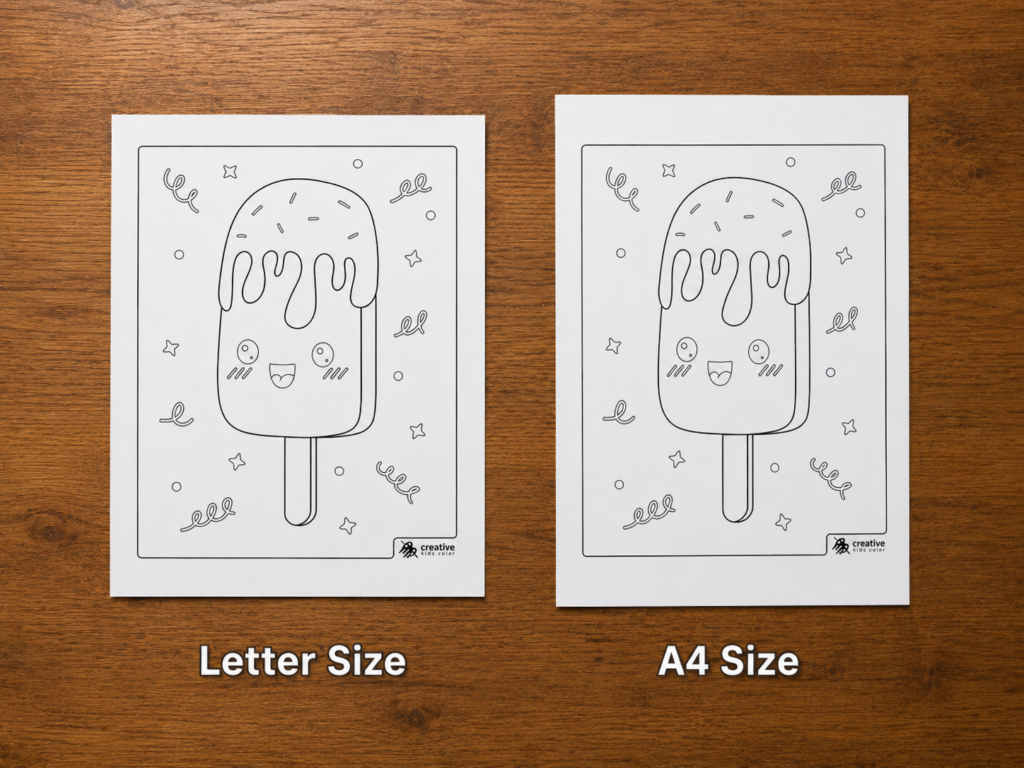
Our pages are in Letter size, so there is a slight difference when compared to A4 paper. However, most A4 printing should handle our pages well when set to A4 paper size and Fit to Page.
But if you’re having trouble, make sure to double check the print window and make any adjustments to the paper size, scale and orientation before printing anything else.
Tips for Teachers and Group Activities
If you’re printing pages for a classroom activity, a group of kids, library programs or homeschooling purposes, a few extra tips can save you a world of headaches.
Always do a quick print test run first. This ensures that your activities and pages are going to look nice and clean.
Print your pages on one sided sheets of paper. This way kids aren’t going to be able to see the next activity or worksheet through the paper. It also makes it much easier for kids to use markers or other coloring tools if you’re doing an activity page or a printable with extra spaces for drawing or writing.
If you’re printing a few different designs, it’s a good idea to organize them. Group designs together based on themes, difficulty and activity type. That way it’s much easier to quickly pass out pages or have a selection of pages ready to go for kids to choose from.
Always download the PDFs for your activity or lesson ahead of time. That way you won’t be stuck waiting if the internet is slow or if the school printer is acting up.
Make sure you always have a few extra pages on hand. Kids love to print something out, decide they want to try something new, color over something they don’t like, or practice on a different page, and having a few extras on hand is always a good idea.
If kids are going to use markers, it’s a good idea to use heavier paper or always have blank sheets available to place underneath the printable page.
Save Ink and Paper
Printing only what you need can save you paper, ink and time.
Always remember to print in Black and White or Grayscale when possible. That way you aren’t wasting ink when it isn’t needed. Most printable pages don’t need to use color ink.
Always do a quick print test or print one page first to make sure the paper size, scale and everything else looks good before printing a lot of pages.
If you’re doing some test printing, consider using the Draft option if you have it. This will save you ink and time. It’s always best to print final copies in Normal or High quality.
Print the actual PDF file instead of the webpage or a small preview image. This will avoid any extra page elements, unintended scaling or other issues that could cause problems when printing.
If a print job doesn’t turn out right, you can always use the back of the page for test prints, drawings and practice coloring or writing.
Need More Help?
Most printing issues can be fixed by double checking the paper size, scaling and orientation.
If a PDF doesn’t open correctly or download, or if one of our printables isn’t printing correctly, let us know. Include details on what happened along with the page you were trying to print. We appreciate any feedback you have when it comes to printing our PDF pages because it helps us improve the experience on Creative Kids Color.